
Intellifi by Adtran®
ADTRAN Holdings, Inc.House & Home
4.219.00 Reviews
- Version
- 6.29.0
- Installs
- 10.00K
- Age Rating
- Everyone
Screenshots
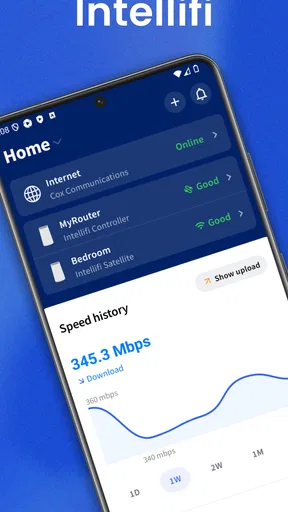
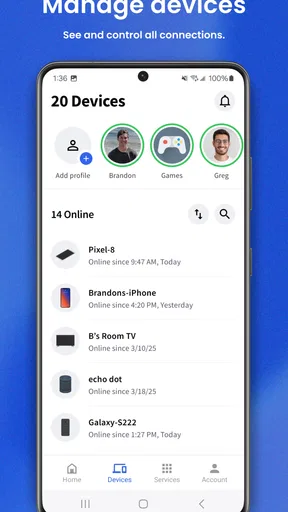
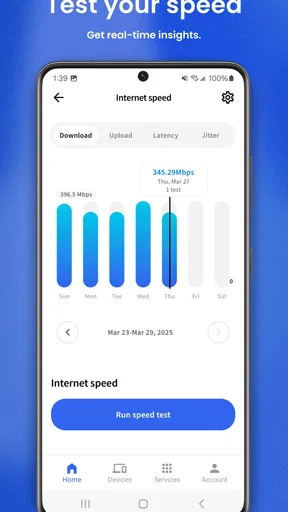
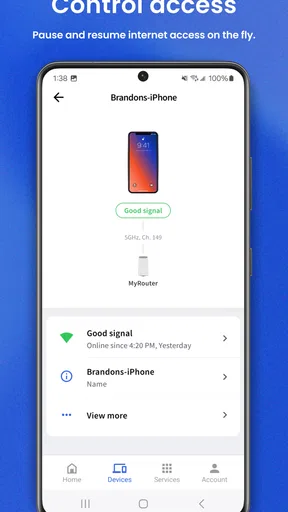
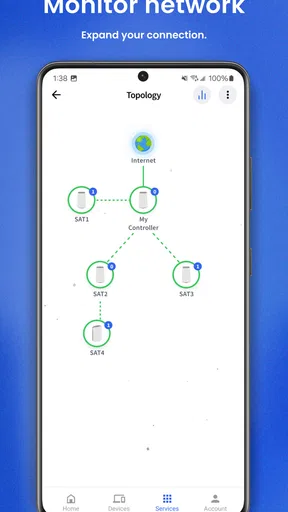
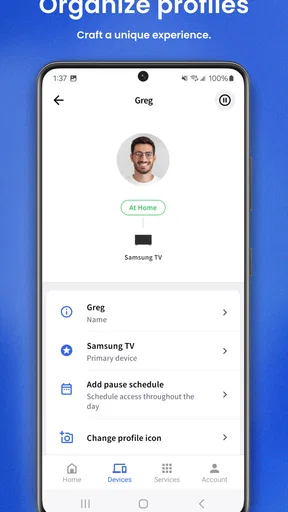
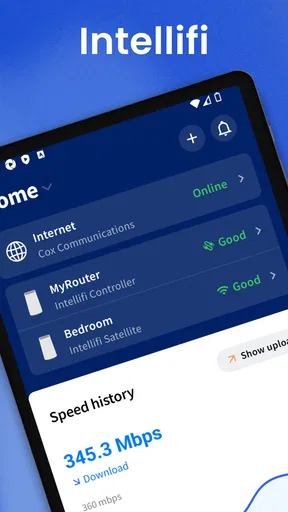
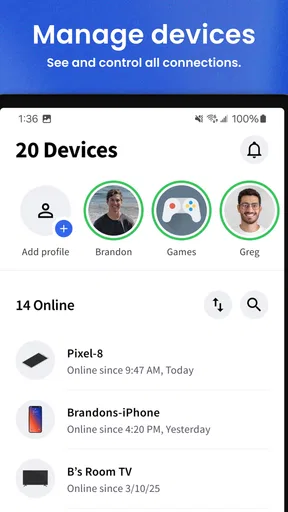
Our Review of Intellifi by Adtran®
 Analysis by Appyee
When home Wi-Fi feels unreliable, the first problem is often not knowing where to begin. A video pauses, a smart device drops offline, or a family member says the connection is slow, and the usual response is to restart the router and hope for the best. I found Intellifi by Adtran® useful because it gives that situation a clearer starting point: it turns the phone into a companion for managing and understanding a home network rather than leaving every decision to guesswork.
This is a free House & Home app from ADTRAN Holdings, Inc., aimed at people who use compatible home networking equipment and want a more approachable way to handle everyday Wi-Fi tasks. It is rated for Everyone, so its tone and purpose are accessible even if networking terminology is not your strength. The app has an average rating of 4.2 from around 144 ratings, with 19 written reviews, and has passed 10K+ installs. Those figures suggest a modest but active user base rather than a huge general-purpose audience.
My overall impression is that Intellifi works best as a practical control point for a supported home setup. It is not a replacement for an internet provider’s account app, a full network engineering tool, or a universal Wi-Fi scanner. Its value depends on whether your home equipment fits into the environment it is designed to manage. When that handoff is smooth, the app can make routine network checks less intimidating. When it is not, the experience can feel limited before you have had a chance to benefit from it.
From a vague Wi-Fi complaint to a clearer home-network routine
I start with the moment most households recognize: a vague Wi-Fi complaint and no obvious clue whether the trouble is the phone, the room, the router, or the internet service. This section looks at how I would turn that complaint into a calmer, repeatable check rather than reaching for a restart straight away. That distinction matters even more when several people depend on the connection at once.
Starting with the real problem
A useful way to approach Intellifi is to begin with the symptom, not the app. If only one phone has trouble, the cause may be that device. If several rooms are affected, the router or Wi-Fi coverage becomes more suspicious. If the internet works but a particular service is slow, the issue may sit outside the home network. The app cannot make those distinctions irrelevant, but it can give the person managing the home a more organized place to inspect the connection.
That matters in ordinary households where the person paying for broadband is not necessarily the person who understands routers. I like that the app belongs in the middle ground between “unplug everything” and “open a technical administration panel.” It is more purposeful than simply checking whether the phone is connected, while remaining more approachable than many browser-based router interfaces.
Before relying on it, I would first identify which networking equipment the household uses and whether Intellifi is intended to work with that setup. This is the most important practical checkpoint. A polished app cannot control hardware outside its supported ecosystem, and installing it does not automatically turn it into a universal manager for every modem, router, extender, or mesh system.
The first setup handoff
The first meaningful handoff is between the phone and the home network. The app needs to become useful in the context of the connection you are trying to manage, so I would do the initial setup at home rather than while travelling or connected to a random public network. Keeping the phone close to the equipment also makes it easier to notice whether a problem is with the app, the local connection, or the service itself.
This is a small but important workflow detail: do not judge the app during the most chaotic moment unless you have to. If the network is already failing, setup can become confusing because every screen feels like evidence that something is broken. A calmer first run lets you establish the normal state of the home connection. Later, when a problem appears, you have a better reference point for comparison.
Intellifi is currently listed as version 6.29.0 and supports Android 7.0 or later. That makes it suitable for many older Android phones still used around the house, including a spare device kept for household administration. I would still keep the app on a phone that receives system updates and has a stable connection, because network-management tools are most useful when the device itself is not introducing another source of uncertainty.
Reading the home situation before changing it
Once the app is connected to the appropriate home environment, I would resist the temptation to change several things at once. The strongest troubleshooting habit here is simple: inspect first, make one adjustment, and then check the result. If you alter multiple settings or restart several pieces of equipment together, you may restore service without learning what actually caused the problem.
This approach is especially helpful in homes with several connected devices. A television, work laptop, game console, smart speaker, camera, and phone can all behave differently even when they use the same Wi-Fi. Looking at the network as a household system is more useful than assuming that the loudest complaint identifies the source of the fault.
A second non-obvious benefit is communication. If one person is standing beside the router while another is in the room where the issue occurs, the app can serve as a shared reference point for the conversation. Instead of saying “the Wi-Fi is bad,” the person checking the network can describe what changed and what did not. That reduces the familiar cycle of repeated restarts and vague blame.
Following the issue through the home
For a realistic example, imagine that a child is trying to join an online class from a bedroom while someone else is streaming video in the living room. The complaint is that the class keeps freezing. I would begin with the affected device and location, then use Intellifi as the place to review the home network’s current condition. The key question is not merely whether the router is online, but whether the problem follows one device, one area, or the whole household.
If the rest of the home is working normally, I would avoid treating the router as automatically guilty. I would check the affected device’s connection, move it temporarily closer to the usual Wi-Fi source if practical, and compare the behavior. That simple physical test can reveal whether the issue is related to distance or obstruction rather than the broadband service. Intellifi is most useful in this workflow when it helps keep those checks in order.
If several devices begin struggling at the same time, the next handoff is to the wider internet connection. The app may help establish that the home network is the place to investigate, but it should not be treated as proof that the internet provider is at fault. A network assistant can organize local troubleshooting; it cannot eliminate every external cause. This distinction prevents users from making unnecessary changes inside the home when the real interruption is elsewhere.
Using the app as a household handoff tool
One of the more practical ways to use Intellifi is to make it part of a shared household routine rather than keeping it on only one person’s phone. The person who normally handles technology can use it to explain the current state of the network to another family member. That is valuable when the usual “tech person” is away, because the replacement does not have to remember every router detail from scratch.
There is a trade-off, though. More people involved can also mean more accidental changes. I would recommend agreeing on a simple rule: use the app to inspect the situation first, and only make changes that everyone understands. For a family, this is safer than treating every visible control as an invitation to experiment. The best result is not a network that has been constantly adjusted; it is a network whose normal behavior is understood.
The same workflow can help when handing a problem to customer support or a technician. Before making contact, I would note when the issue happens, which devices are affected, and whether restarting or relocating a device changes anything. Intellifi becomes part of the evidence-gathering stage. That can make a support conversation more precise, even though the final resolution may require the internet provider or equipment specialist.
What the result feels like in daily use
The outcome I would expect from a good Intellifi session is not a dramatic transformation every time. Often the result is more modest and more useful: I know whether the issue looks local, whether it affects one device or several, and what the next sensible action is. That clarity is worth more than a long list of technical readings that do not lead to a decision.
For routine home management, the app is a better fit for checking and guiding than for deep customization. Someone who wants a straightforward way to understand a supported Wi-Fi environment may appreciate that focus. Someone who wants advanced controls, detailed wireless analysis, or broad compatibility across unrelated brands may quickly find the experience too narrow.
Another useful outcome is avoiding unnecessary resets. Restarting equipment can temporarily hide a problem, but it also interrupts everyone in the home and may disconnect devices that were working correctly. A more deliberate check through the app can help decide whether a restart is justified. That is a small efficiency gain, but it matters when the network supports work, school, entertainment, and household devices at the same time.
Where the workflow breaks
The biggest limitation is ecosystem dependence. Intellifi is not automatically the right choice simply because it is free or because it describes itself as a home Wi-Fi assistant. Its usefulness is tied to the network equipment and service arrangement around it. If your router is managed through another manufacturer’s application, or if you need a tool that scans and analyzes networks independently of the hardware brand, a different option may be a better match.
The second point of friction is expectation. A person may install the app hoping it will fix weak broadband, remove dead zones, or improve every device instantly. That is not how I would evaluate it. The app can support diagnosis and management, but physical placement, building materials, device limitations, congestion, and service interruptions still matter. If the underlying problem requires a new router, a better access-point position, or help from the provider, an app alone cannot substitute for that work.
There is also a learning curve, even with a friendly network assistant. The interface may make information easier to approach, but users still need to connect what they see with what is happening in the house. A device appearing connected does not necessarily mean every online service will perform well. A network looking normal at one moment does not guarantee that an intermittent issue will appear during a quick check. I would treat the app as one part of a troubleshooting process, not as an unquestionable verdict.
For privacy-conscious households, I would also recommend reading the app’s current permission and account prompts carefully during setup. The right choice depends on how comfortable you are with the relationship between the app, your phone, and your networking equipment. That is not a reason to reject it automatically, but it is a reason to avoid tapping through setup without understanding what is being requested.
Who should use it and who should look elsewhere
I would recommend Intellifi to a household using compatible ADTRAN-related networking equipment that wants a simpler way to keep track of home Wi-Fi. It is particularly suitable for the person who is often asked to fix connection problems but does not want to manage everything through dense technical menus. It can also help families create a repeatable process for checking problems before calling support.
I would be more cautious if your main goal is advanced network analysis. Enthusiasts who want extensive channel information, granular traffic inspection, or highly specialized diagnostics may prefer a dedicated network utility or the manufacturer’s full administration tools. Likewise, if your home uses equipment from several unrelated ecosystems, a neutral tool may offer a more coherent overview than an app designed around one networking environment.
It is also not the best fit for someone expecting an internet-speed test to explain every poor experience. A speed result can be useful, but real performance depends on the device, location, service, and application involved. Intellifi makes more sense when you are willing to follow the whole path from symptom to network check to practical next step.
My recommendation after following the full workflow
After looking at the complete journey—from a vague complaint, through setup and inspection, to a decision about what to do next—I see Intellifi as a focused home-network companion rather than a universal solution. Its strength is reducing uncertainty for everyday Wi-Fi management. The app gives supported households a more structured place to begin, and that alone can prevent wasted time and unnecessary resets.
The free price makes it easy to try, while the Everyone rating keeps it approachable for a broad household audience. Its 6.29.0 release and Android 7.0 minimum also make it practical for users who are not carrying the newest phone. Still, those conveniences should not outweigh the compatibility question. The first thing I would confirm is whether the home equipment belongs in the app’s intended environment.
My honest advice is to use Intellifi as a calm first checkpoint, not as a promise that every Wi-Fi problem will disappear. If your setup is compatible and your main need is clearer day-to-day management, I think it is worth keeping available. If you need deep technical controls, independent support for many brands, or a tool that can solve service and coverage problems by itself, I would choose a more specialized alternative instead.
That balance is what makes the app worthwhile. It does not need to replace every networking tool to be helpful. For the right home, it can turn “the internet is acting up” into a sequence of checks, handoffs, and decisions that an ordinary person can actually follow.
Verdict
Strengths of Intellifi by Adtran®
- Provides centralized control for compatible home Wi‑Fi networks.
- Helps identify connected devices and monitor network activity.
- Can simplify troubleshooting with guided diagnostic information.
- Supports managing multiple household devices from one app.
- Useful for checking Wi‑Fi performance from a mobile device.
Limitations of Intellifi by Adtran®
- Features depend heavily on compatibility with an Adtran® gateway.
- Some advanced controls may require an active provider-supported service.
- Performance information can vary with device and network conditions.
- The interface may feel limited for users wanting detailed network tools.
- Account or provider credentials may be required for full functionality.
Similar Picks in This Category
View All
Universal TV Remote Control
CodeMatics Media Solutions3.9

AlfredCamera Home Security app
Alfred Systems Inc.4.7

Planner 5D: AI Home Design
Planner 5D4.5

Universal Tv Remote-Cast to TV
One Music Player4.1

Zillow: Homes for Sale & Rent
Zillow Group4.8

99acres Buy/Rent/Sell Property
infoedge.com4.3
Frequently Asked Questions
What is Intellifi by Adtran® and what does it do?
Intellifi by Adtran® is a Wi-Fi management and monitoring app designed to work with compatible Adtran network equipment and services. After connecting it to a supported home or business network, users can typically view connected devices, check connection performance, manage access, and troubleshoot common wireless issues. The exact tools available may depend on the hardware, firmware, and service provided by your internet operator.
Is Intellifi by Adtran® compatible with every Wi-Fi router?
No. Intellifi by Adtran® is intended for use with compatible Adtran gateways, routers, or managed Wi-Fi systems rather than every third-party router on the market. Before downloading, check with your internet service provider or network administrator to confirm that your equipment supports the application. Even when the app installs successfully, some features may remain unavailable if the associated Adtran system is not provisioned for mobile management.
What can I manage through the Intellifi app?
Depending on your account and supported equipment, Intellifi may allow you to see connected devices, review network status, identify wireless performance problems, and manage selected access or security settings. Some deployments can also provide tools for guest access, device profiles, parental controls, or service diagnostics. The available controls are not identical for every customer, so the app should be viewed as a companion to a compatible managed Wi-Fi service.
Does Intellifi by Adtran® require an account or internet connection?
In most supported setups, you need an account supplied or activated by your internet provider, network administrator, or Adtran service partner. The app generally communicates with your managed gateway through an internet connection, so setup and remote management may not work when the service is offline. You may still be able to view limited local information during an outage, but full diagnostics and cloud-based controls can be temporarily unavailable.
Is Intellifi by Adtran® free to download and safe to use?
The application may be available to download without a separate purchase, but access to its features can depend on a subscription, managed Wi-Fi package, or service agreement from your provider. For safety, download it only from the official Google Play Store or Apple App Store and verify the publisher is Adtran or an authorized provider. Review requested permissions and privacy information, since the app may process network, device, and account data to provide its management features.
